
BugTrace shows your WordPress debug log inside your dashboard. It is 100% free. This guide shows you how to install it. It also shows what BugTrace changes on your site.
Before you start #
- You need WordPress 6.2 or newer.
- You need PHP 7.4 or newer.
- You must be an administrator.
- WordPress must be able to write to your
wp-config.phpfile. BugTrace changes this file to turn debug mode on and off.
Install and activate BugTrace #
- In your dashboard, go to
Plugins → Add New Plugin. - In the search box, type BugTrace.
- Find BugTrace – Debug Log Tool. Click Install Now.
- Click Activate.
- A new BugTrace menu appears on the left. It has three pages: Logs, Server Info and Settings.
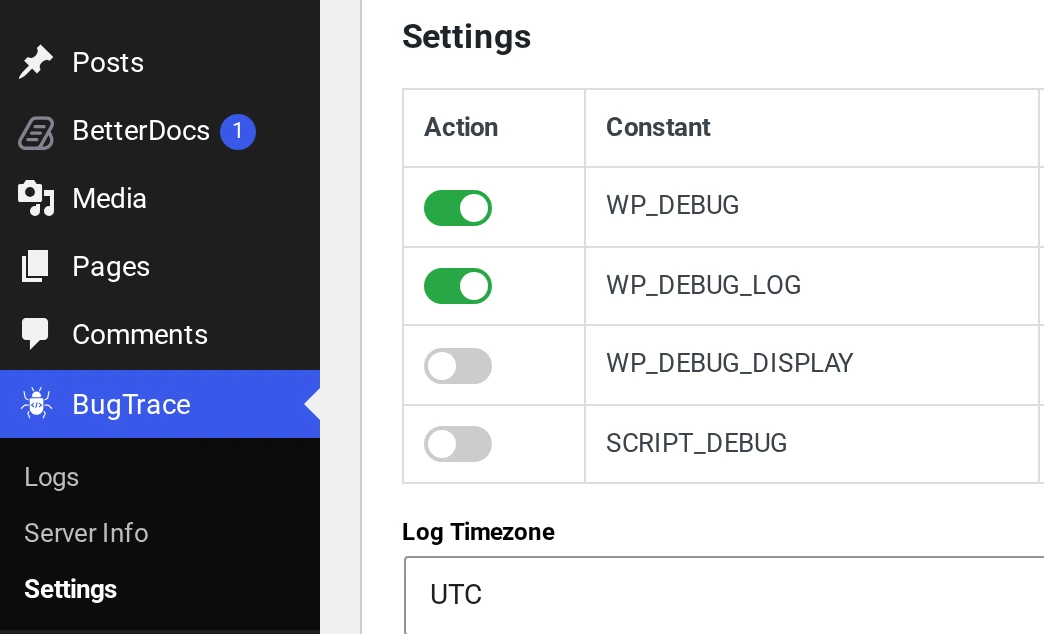
BugTrace also adds a BugTrace menu to the admin bar at the top of the screen. From there you can view, download or clear the log.
What changes when you activate BugTrace #
When you activate BugTrace, it turns on debug logging for you. It does not ask first. It does these things:
- It saves a copy of your
wp-config.phpfile. The copy is calledwp-config-backup.php. It is in the same folder. - It adds or changes four lines in
wp-config.php:
define( 'WP_DEBUG', true );
define( 'WP_DEBUG_LOG', true );
define( 'WP_DEBUG_DISPLAY', false );
define( 'SCRIPT_DEBUG', false );
This is what each line does:
| Setting | After activation | What it does |
|---|---|---|
WP_DEBUG | On | Turns on debug mode in WordPress. |
WP_DEBUG_LOG | On | Saves errors to a log file. |
WP_DEBUG_DISPLAY | Off | Shows errors on the screen. It stays off, so visitors do not see errors. |
SCRIPT_DEBUG | Off | Loads the full (not minified) CSS and JavaScript files of WordPress. |
Errors are now saved to wp-content/debug.log. You can read them in BugTrace → Logs.
You can change these settings at any time in BugTrace → Settings. Click Save Settings when you are done.
If wp-config.php is not writable #
If WordPress cannot write to wp-config.php, BugTrace changes nothing. You will see this message on the Logs and Settings pages:
Please note, wp-config.php is not writable. Please change file permissions.Ask your web host to make the file writable. Or change the file permissions with your host’s file manager.
When you deactivate BugTrace, it turns all four settings off. This happens even if debug mode was on before you installed BugTrace. If you need debug mode after that, turn it on again in wp-config.php.
Do and don’t #
- Do check
BugTrace → Logsafter you install a new plugin or theme. - Do change debug settings in
BugTrace → Settings, not by hand. - Do turn off
WP_DEBUG_LOGon a live site when you finish. The log file can grow big, and other people may be able to open it in a browser.
- Don’t turn on
WP_DEBUG_DISPLAYon a live site. Visitors would see your errors, and errors can show private details. - Don’t edit the debug lines in
wp-config.phpby hand while BugTrace is active. The Settings page will not know about your change.