
You can download your full debug log. You can also empty it when you do not need the old errors.

Download the log #
- Go to
BugTrace → Logs. - Click the Download Log icon (the arrow into a tray).
- Your browser saves the file
debug.log.
You can also click BugTrace → Download Log in the admin bar.
The download is the whole file, not only the errors on the screen. Open it with any text editor.
If there is no log file, you see File does not exists!. This means there are no errors yet, or logging is off.
Clear the log #
- Go to
BugTrace → Logs. - Click the Clear Log icon (the trash can).
- BugTrace asks: Are you sure you want to clear the debug log? This cannot be undone.
- Click Confirm. Or click Cancel to keep the log.
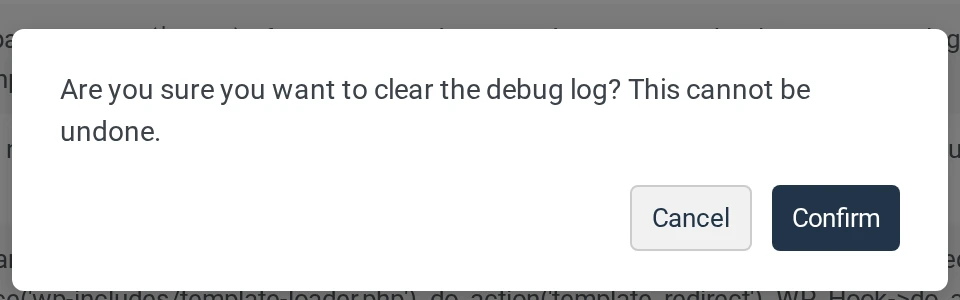
BugTrace empties the file. New errors are saved to the same file.
BugTrace → Clear Log in the admin bar does not ask first. It empties the log at once. You cannot undo it.
Do and don’t #
- Do download the log before you clear it, if you may need the errors later.
- Do clear the log on a live site when you finish. The file can grow big.
- Don’t send the log file to other people without checking it. It can show file paths and other details about your site.