
The Logs page shows the errors from your WordPress debug log. You do not need to open the file on your server.
Open the log #
Go to BugTrace → Logs. You can also click BugTrace → View Log in the admin bar.
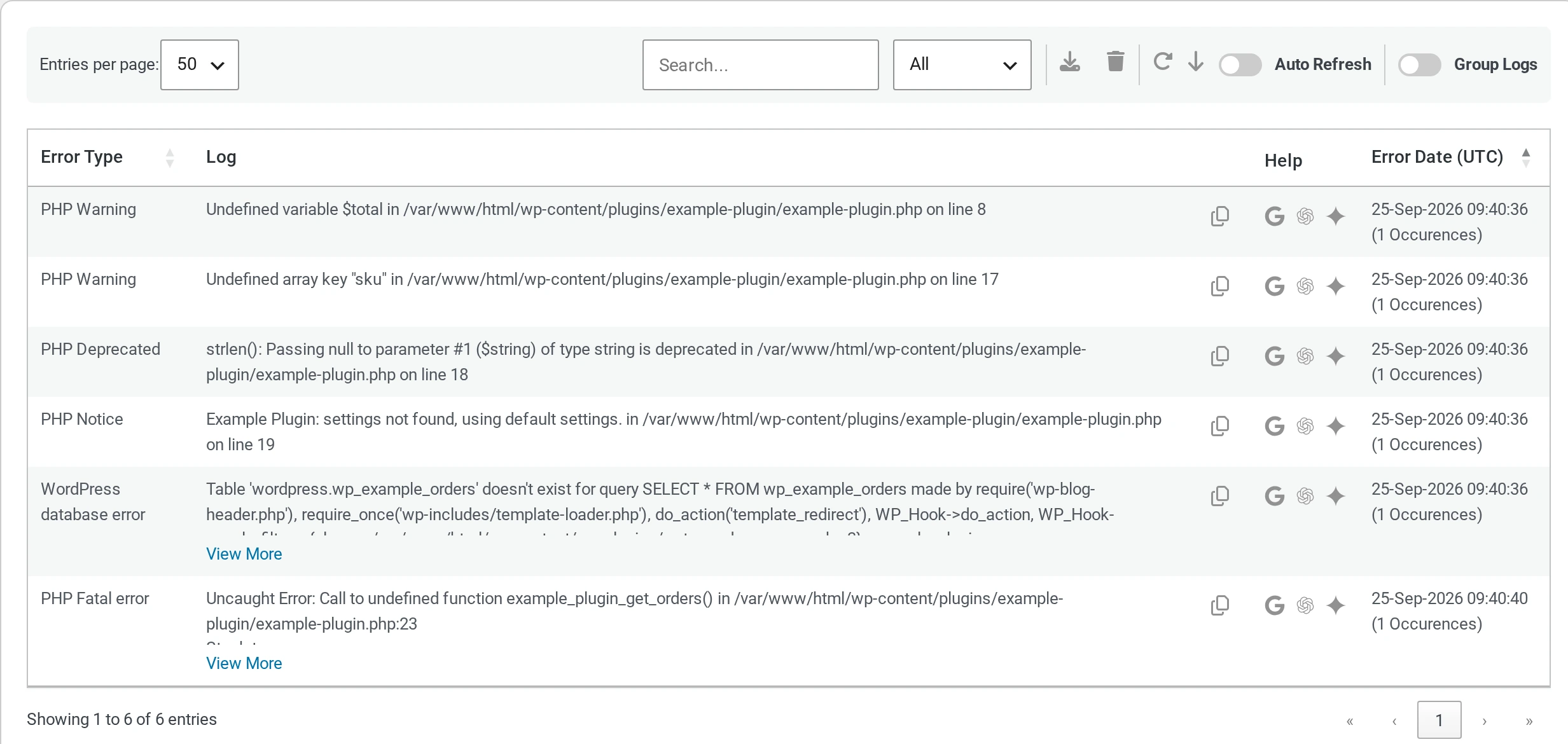
If the table says No logs found, read No errors show in the log.
Read the table #
| Column | What it shows |
|---|---|
| Error Type | The kind of error, for example PHP Warning. |
| Log | The error message. It often shows the file and the line number. Click View More to read a long message. |
| Copy icon | Copies this one error. |
| Help | Searches the web for this error. See Get help with an error. |
| Error Date (UTC) | When the error happened, and how many times. |
The oldest errors are on the first page. To see the newest errors, click the Jump to newest entries button (the down arrow).
Error types #
| Type | What it means |
|---|---|
| Fatal error | Something broke. A page or feature may stop working. Fix these first. |
| Warning | Something is wrong, but the page still works. |
| Notice | A small problem. Often safe to ignore. |
| Deprecated | Code uses an old way that will stop working in a future version of PHP or WordPress. |
| PHP Parse | There is a typing mistake in a PHP file. |
| Database | A database query failed. |
| Other | Any other line in the log. |
Filter by error type #
Use the menu next to the search box. Choose a type, for example Warning. The table shows only that type.
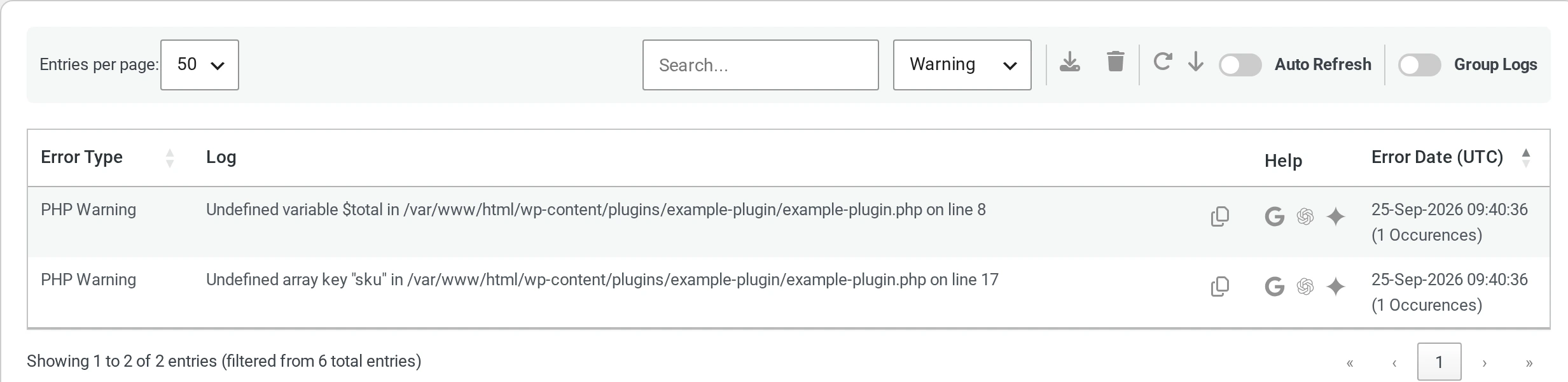
Choose All to see every error again.
In BugTrace 1.1.0 the Exceptions filter does not show any results. Use the search box instead.
Search the log #
Type a word in the Search… box. For example, a plugin name or a file name. BugTrace searches the error type, the message and the date.
BugTrace remembers your search, your filter and the number of entries per page. If the table looks empty, check that the search box is empty and the filter says All.
Show more errors on one page #
Use Entries per page to show 20, 50, 100 or 200 errors on each page. The default is 50.
Group the same error #
The same error can happen many times. Turn on Group Logs to show each error once. The date shows the last time it happened, and the number shows how many times.
Refresh the log #
- Click the Refresh button to load new errors.
- Turn on Auto Refresh to load new errors every 60 seconds. It waits while your mouse is over the table.
How much of the log BugTrace shows #
BugTrace reads the newest part of your log. On most sites this is about the last 4,000 errors. It depends on your PHP memory limit. To see the whole file, download the log.