
Pastmark can email you a short summary of your site activity every day or every week.
Go to User Activity → Settings → Email Reports.
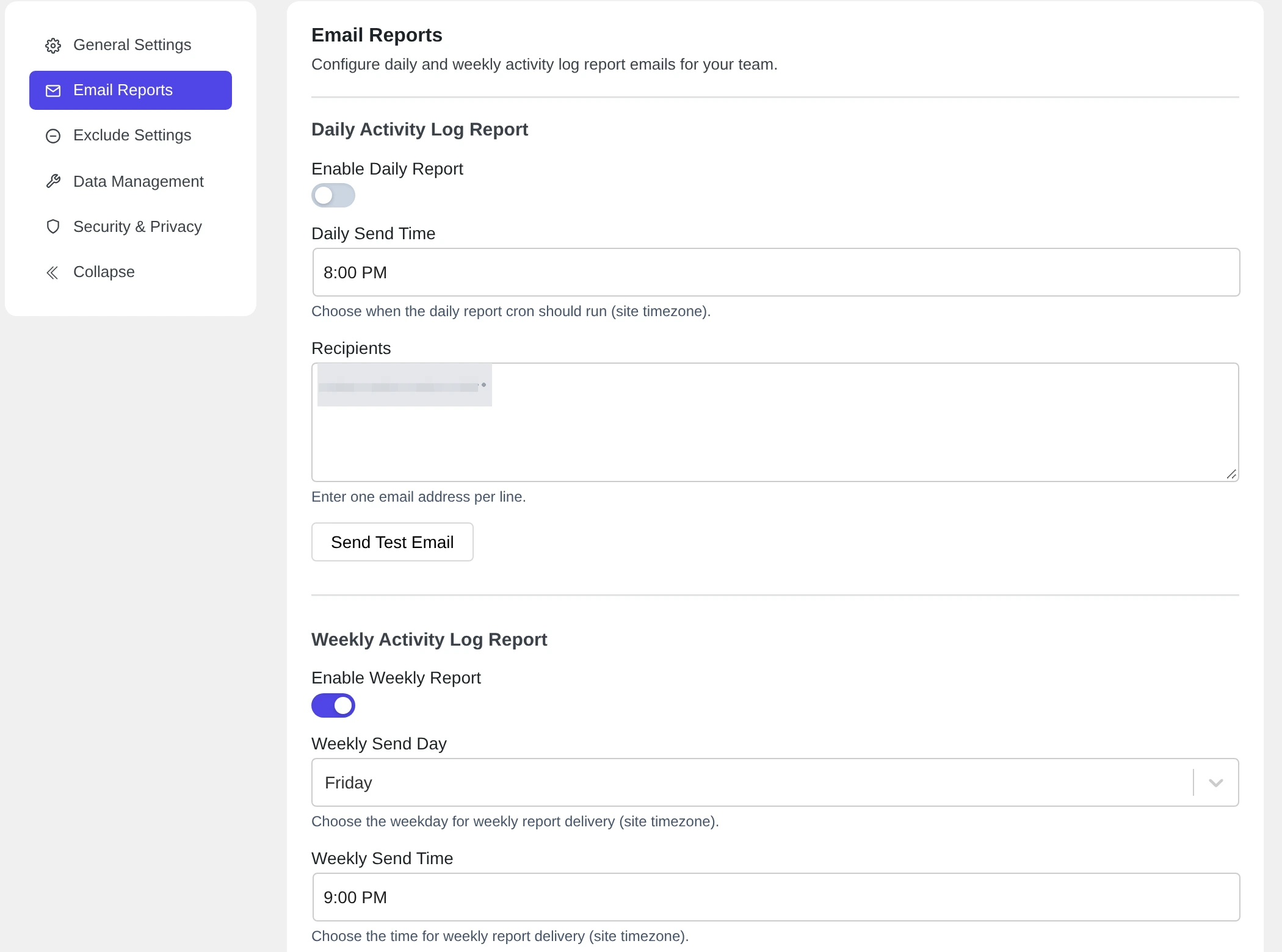
The weekly report is on by default. It goes every Friday at 9:00 PM to your site’s admin email. Turn off Enable Weekly Report if you do not want it.
The settings #
| Setting | Default | What it does |
|---|---|---|
| Enable Daily Report | Off | Sends a report every day. |
| Daily Send Time | 8:00 PM | When the daily report is sent. |
| Recipients | Admin email | Who gets the report. Enter one email address per line. |
| Enable Weekly Report | On | Sends a report every week. |
| Weekly Send Day | Friday | The day of the weekly report. |
| Weekly Send Time | 9:00 PM | When the weekly report is sent. |
Times use your site’s time zone (Settings → General → Timezone). Click Submit to save.
What is in the reports #
- Daily report: total events, critical events, active users, and the top event categories of the day.
- Weekly report: total events in 7 days, the average per day, critical events, active users, the top categories of the week, and the number of events for each day.
Send a test email #
Click Send Test Email to check that your site can send the report.
If no email arrives:
- Check your spam folder.
- Check the address under Recipients.
- Many hosts do not send WordPress emails well. Install an SMTP plugin to send emails through a real email service.
The reports are sent by WordPress’s scheduled tasks (WP-Cron). WP-Cron runs when someone visits your site. On a site with very few visitors, a report can arrive late.