
Your log can grow big. Use search and filters to find the events you need.
Search #
Type in the Search logs… box at the top of User Activity → Activity Logs. Pastmark searches the event message and the action.
If you type only a number, Pastmark also finds events with that event ID, object ID or user ID.
Filter #
- Click Filters. The Advanced Filters box opens.
- Choose one or more filters.
- Click Apply Filters.
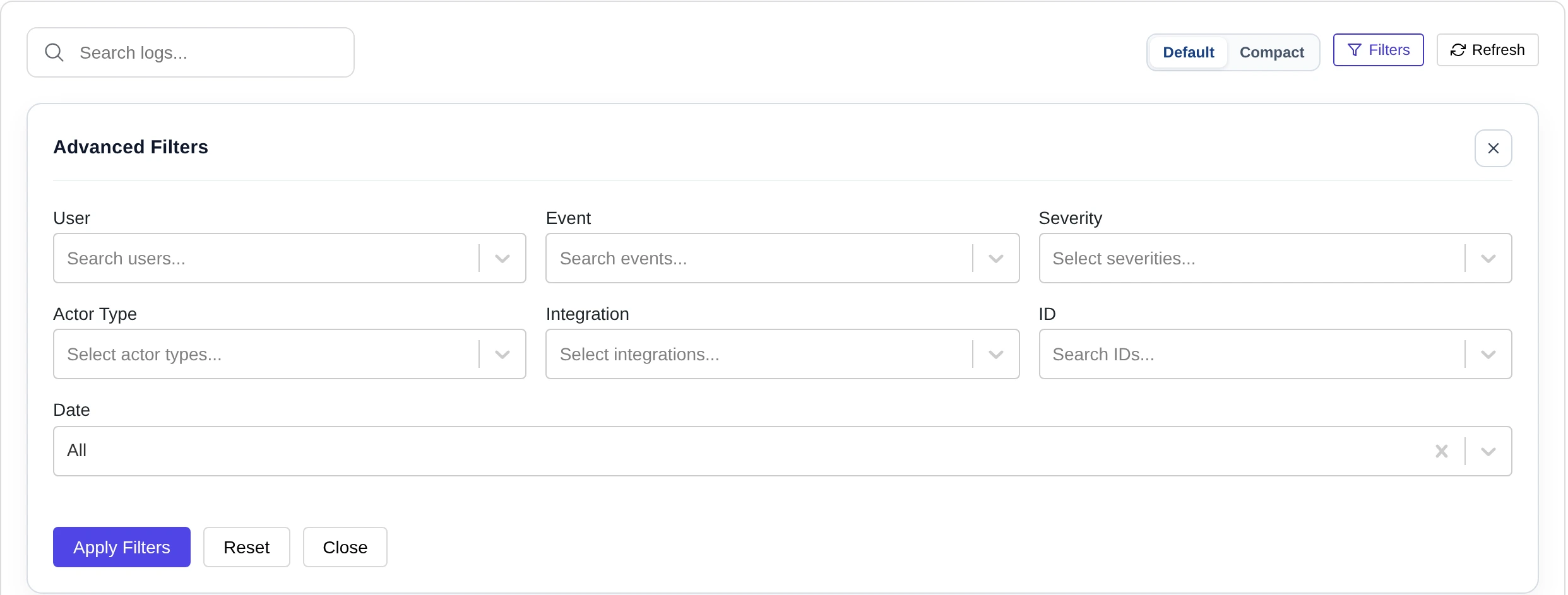
| Filter | What it does |
|---|---|
| User | Shows events by one or more users. |
| Event | Shows one kind of event, for example Authentication or Plugins. |
| Severity | Info, Warning, Error, Critical or Debug. |
| Actor Type | Human, System, Scheduled or AI Agent. |
| Integration | Core, WooCommerce, ACF, WPForms or Gravity Forms. |
| ID | Shows events with these event IDs. |
| Date | All, Today, Yesterday, Last 7 Days, Last Week, Last Month, Last 30 Days, or Custom Range with a start and end date. |
Your filters show at the top as Applied Filters. Click Clear All to remove them. Or open Filters and click Reset.
Pastmark remembers your filters in your browser for one year.
Actor types #
| Actor type | Meaning |
|---|---|
| Human | A logged-in person did it. |
| System | Nobody was logged in. For example, a failed login. |
| Scheduled | A scheduled task (WP-Cron) did it. |
| AI Agent | An AI tool did it, for example a tool that uses the WordPress API. Pastmark detects this from the tool’s user agent. |
Examples #
- Who logged in this week? Event: Authentication, Date: Last 7 Days.
- What did one editor change? User: choose the editor.
- Only serious events: Severity: Warning, Error and Critical.
The dates in the filter use UTC time. They can differ a little from your local time.