
You decide what Pastmark writes to the log. Start with a preset. Then turn single actions on or off if you need to.
Go to User Activity → Events.
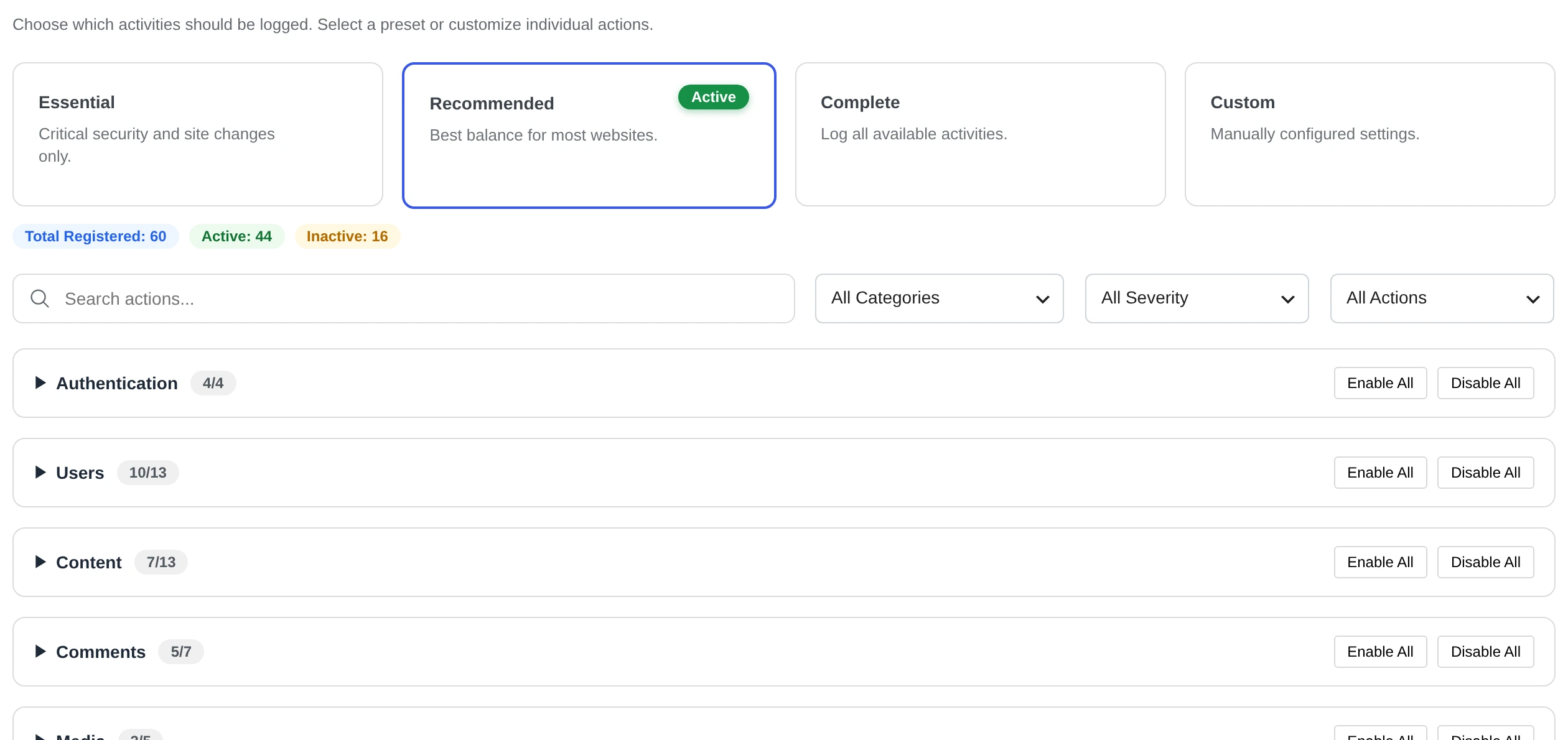
The presets #
| Preset | What it records |
|---|---|
| Essential | Critical security and site changes only. For example logins, failed logins, new users, role changes, plugin and theme changes. |
| Recommended | Best balance for most websites. This is the default. |
| Complete | Every action that Pastmark can record. |
| Custom | Your own choice of actions. |
The active preset has a green Active label. Above the list you see how many actions there are in total, and how many are on (Active) and off (Inactive).
Recommended leaves out small changes that happen very often. For example: a post’s slug or date, menu and widget updates, and many small WooCommerce product changes. Choose Complete if you need those too.
Turn single actions on or off #
- Click a group, for example Authentication. You see its actions.
- Turn an action on or off with its switch.
- Click Save Changes.
- You see the message Event settings saved successfully.
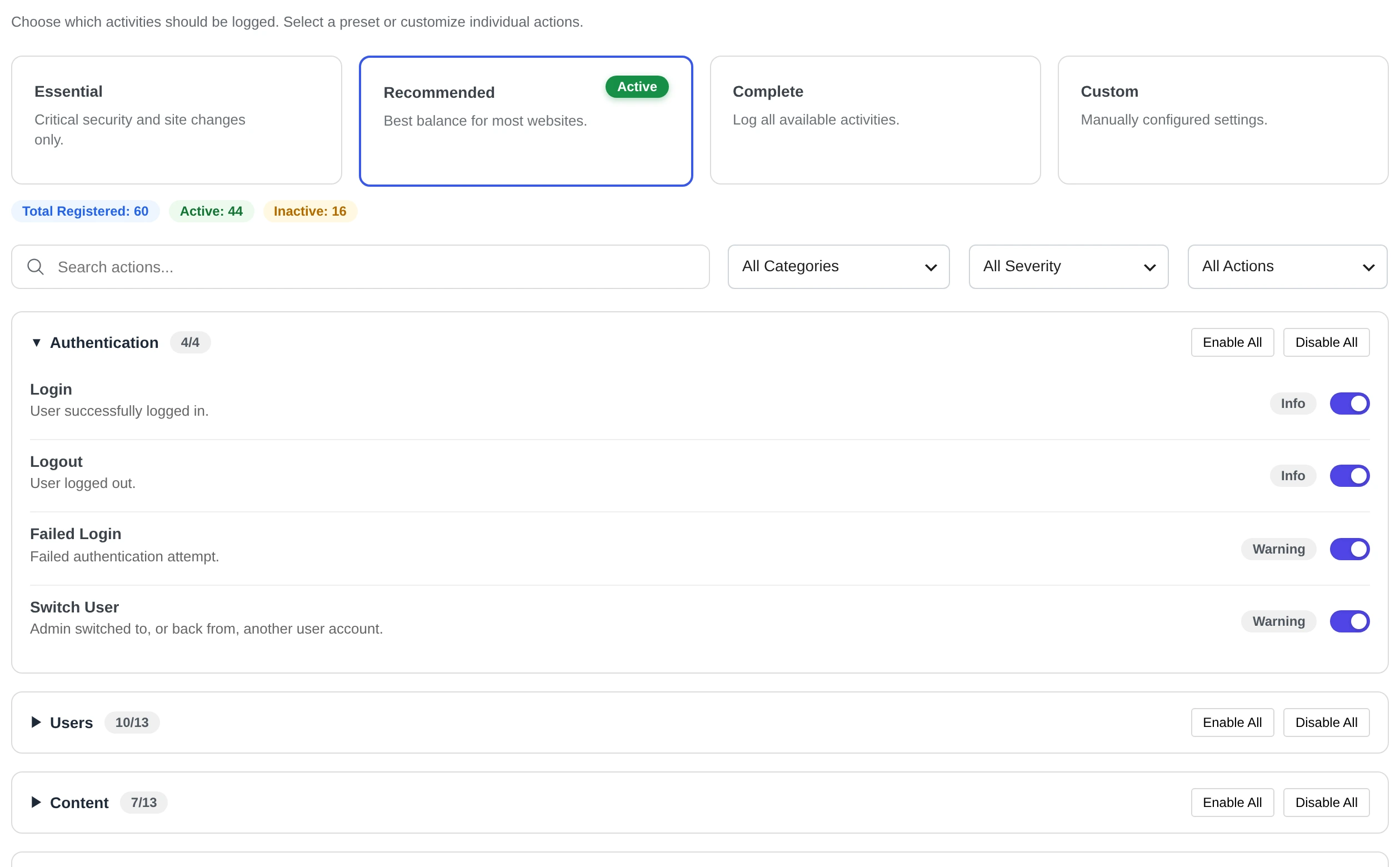
Each action has a label that shows its severity, for example Info or Warning.
To change a whole group at once, click Enable All or Disable All next to it.
Find an action #
Use the tools above the list:
- Search actions… finds an action by name.
- All Categories shows one group only.
- All Severity shows one severity only.
- All Actions shows only actions that are on (Enabled Only) or off (Disabled Only).
- Reset Filters shows everything again.
Groups for other plugins #
Some groups only appear when the other plugin is active. For example, the WooCommerce group appears when WooCommerce is active. Read Other plugin integrations.
Is your plugin not in the list? At the bottom of the page, click Request an Integration.
Only turn on what you need. A smaller log is easier to read and uses less space.