
Exclusions tell Pastmark what not to record. Use them to remove noise from your log.
Go to User Activity → Settings → Exclude Settings.
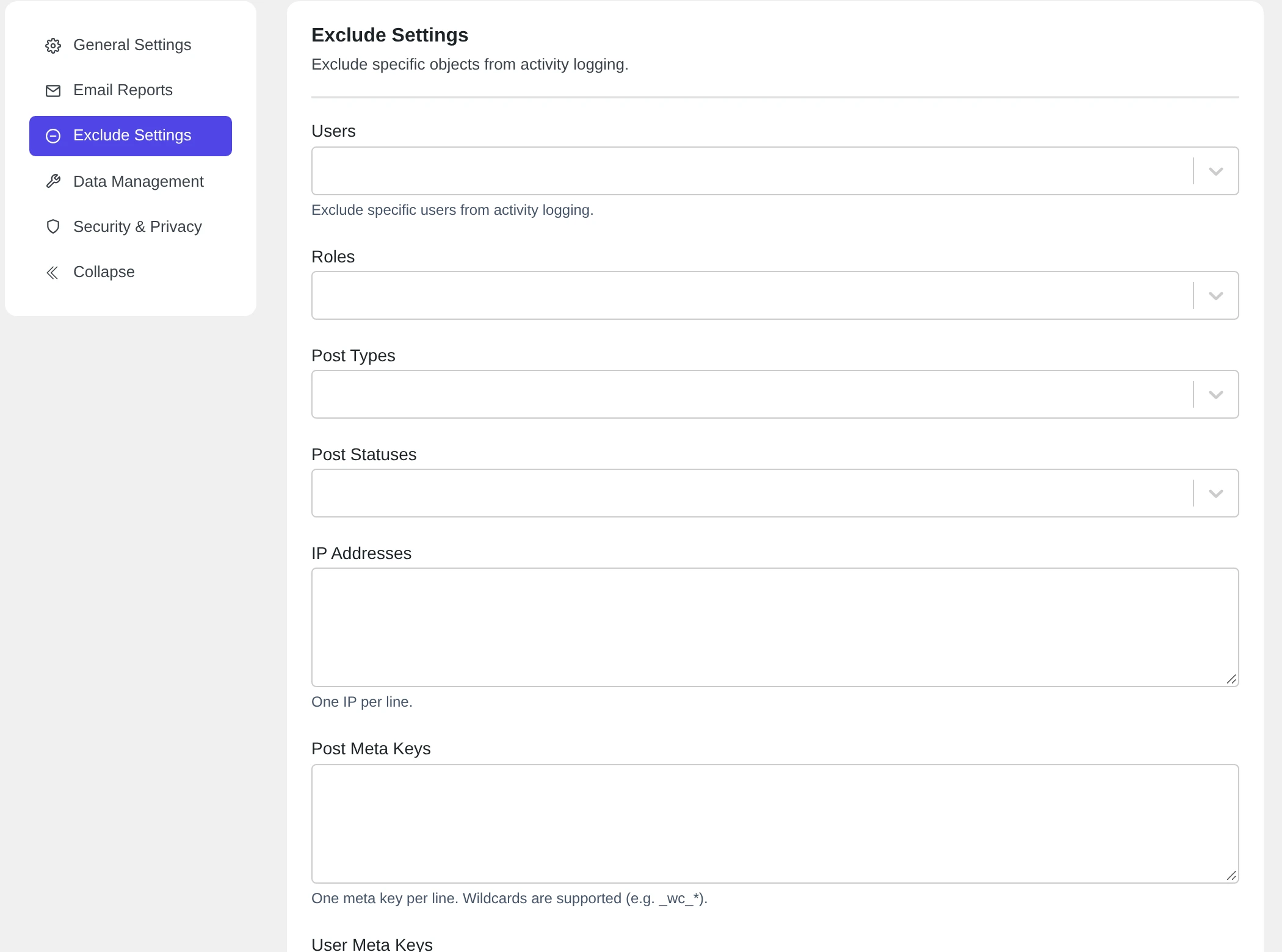
Click Submit to save.
What you can exclude #
| Field | What Pastmark does not record | Example |
|---|---|---|
| Users | Anything these users do. | Your own developer account. |
| Roles | Anything users with these roles do. | subscriber |
| Post Types | Changes to these post types. | attachment |
| Post Statuses | Changes to posts with these statuses. | draft |
| IP Addresses | Anything from these IP addresses. One IP per line. | 203.0.113.10 |
| Post Meta Keys | Changes to these post custom fields. One key per line. | _edit_lock |
| User Meta Keys | Changes to these user custom fields. One key per line. | session_tokens |
| Plugins | Activity of these plugins. | |
| Themes | Activity of these themes. | |
| Exclude Cron Requests | Events that happen during scheduled tasks (WP-Cron) and background tasks. |
Wildcards #
In the text fields you can use * as a wildcard. It means “anything”.
_wc_*matches every meta key that starts with_wc_.203.0.113.*matches every IP address from203.0.113.0to203.0.113.255.
Upper and lower case do not matter.
IP ranges in CIDR format, like 203.0.113.0/24, do not work. Use * instead.
Do and don’t #
- Do exclude your own IP address if your own work fills the log.
- Do exclude noisy meta keys, like
_edit_lock, that change often. - Don’t exclude the administrator role on a live site. Admin changes are often the most important ones to see.
- Don’t forget your exclusions. If an event is missing from your log, check this page first.