
An alert rule says when Pastmark Pro sends an alert. For example: “Send an email when someone becomes an administrator.”
Go to User Activity → Settings → Alerts → Alert Rules.
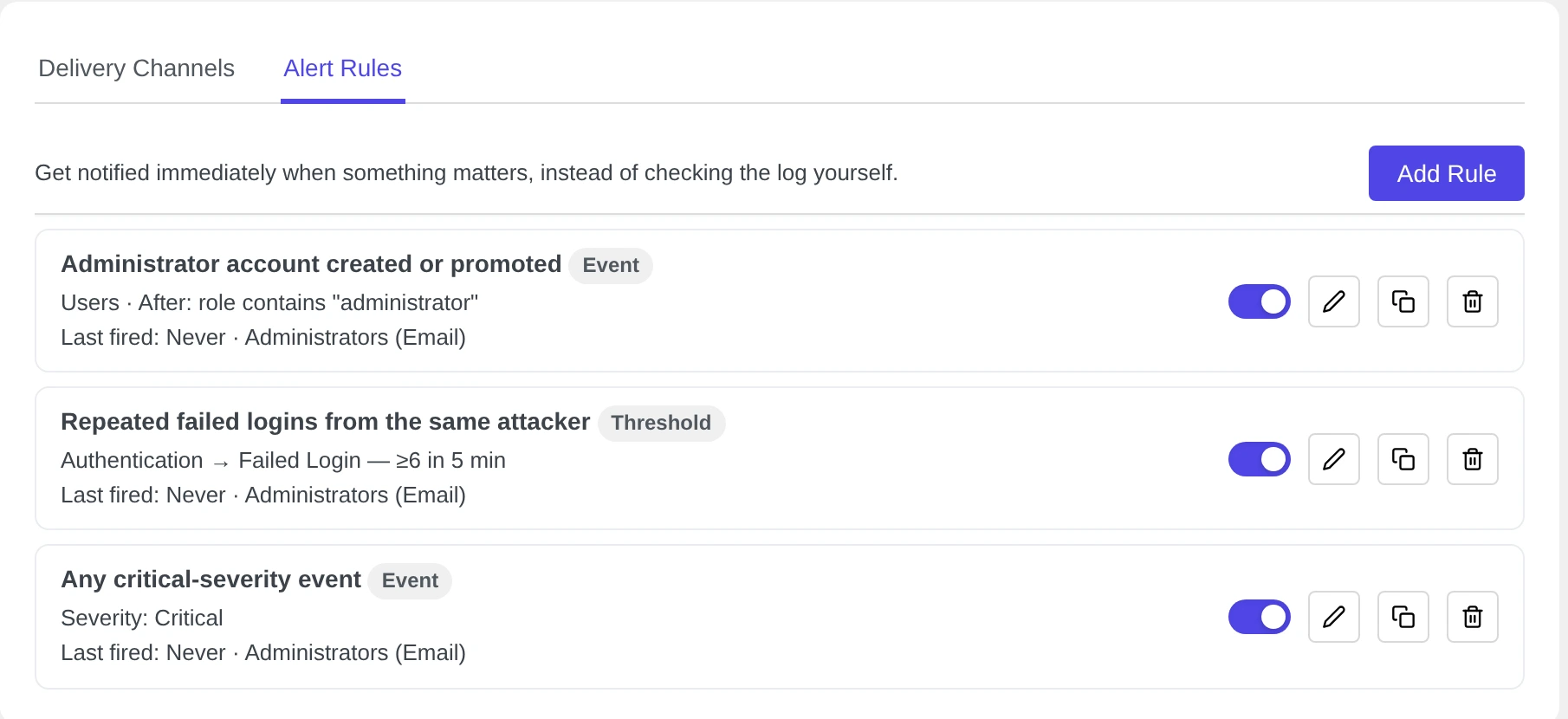
The built-in rules #
Pastmark Pro adds three rules for you. They are on, and they use the Administrators (Email) channel.
| Rule | When it sends an alert |
|---|---|
| Administrator account created or promoted | A user gets the administrator role. |
| Repeated failed logins from the same attacker | Many failed logins happen in a short time. With the default settings: 6 in 5 minutes. |
| Any critical-severity event | An event with the severity Critical happens. |
Use the switch to turn a rule on or off. Use the icons to edit, copy or delete it.
Create a rule #
- Click Add Rule.
- Type a Rule Name, for example
Plugin deleted. - Choose a Condition:
- Fire on a matching event: send an alert every time the event happens.
- Fire after N matching events in a window: send an alert only when the event happens many times in a short time.
- Under Conditions, choose the Event Type and the Action. For example Plugins and Delete. Any means any value. Click + Add condition to add another one. The rule fires when any one of the conditions matches.
- If you want, tick one or more Severity boxes. Leave them empty for any severity.
- Under Notify via, tick one or more channels.
- Set the Cooldown. Read below.
- Click Save Rule. Then turn the rule on with its switch.
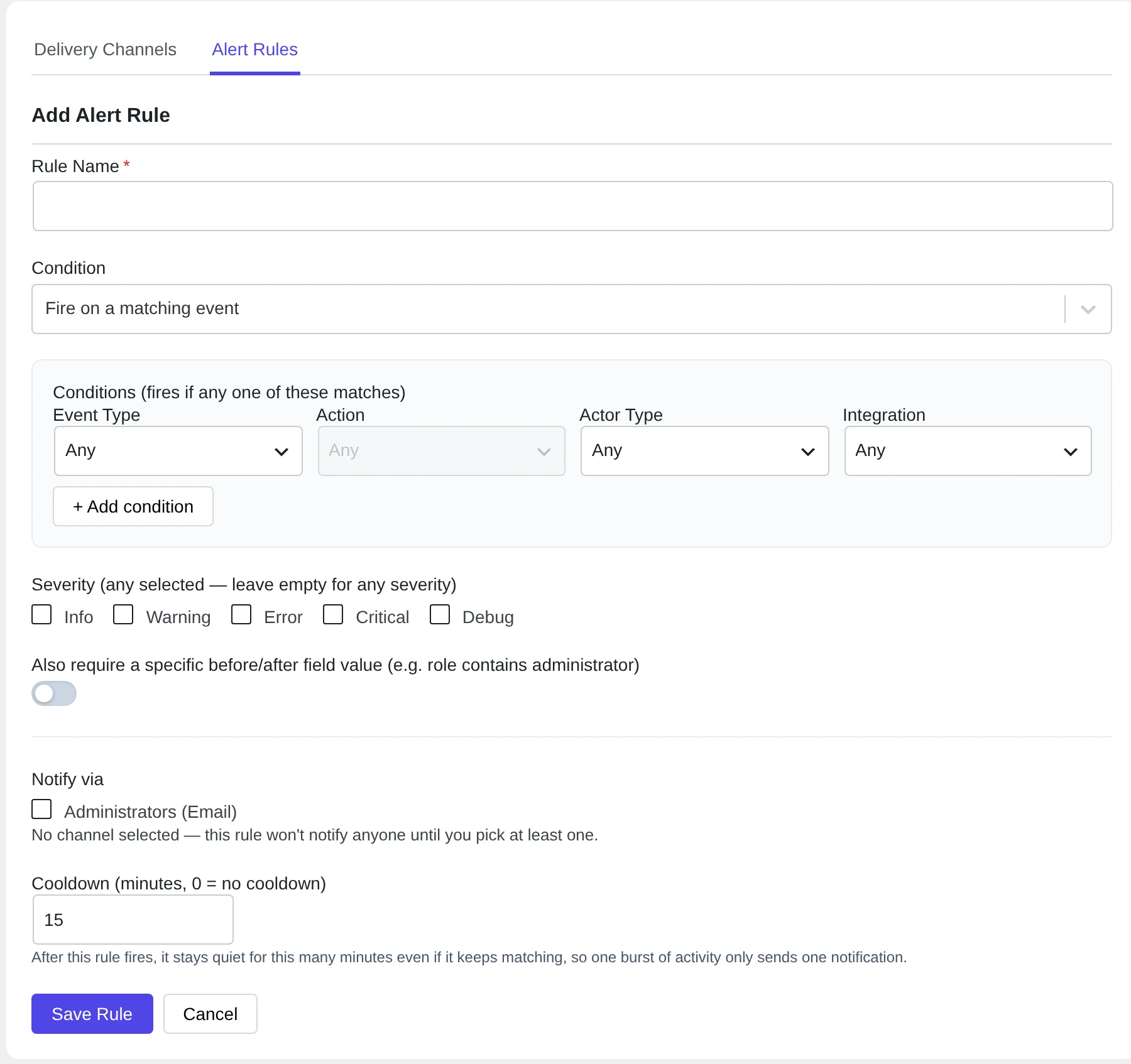
A rule without a channel sends nothing. You see the message No channel selected — this rule won’t notify anyone until you pick at least one.
Rules that count events #
With Fire after N matching events in a window, you set:
- Occurrences: how many times the event must happen.
- Within (minutes): in how many minutes.
Example: Occurrences 10, Within 5. Pastmark Pro sends an alert when the event happens 10 times in 5 minutes.
Cooldown #
Cooldown (minutes, 0 = no cooldown) stops too many alerts. After a rule sends an alert, it waits this many minutes before it sends again. The default is 15 minutes. Set 0 to get an alert every time.
Check a before or after value #
Turn on Also require a specific before/after field value to fire only for some changes. For example: the role contains administrator. The built-in administrator rule uses this.
Examples #
| You want an alert when… | Event Type | Action | Condition |
|---|---|---|---|
| A plugin is deleted | Plugins | Delete | Fire on a matching event |
| A theme is switched | Themes | Switch Theme | Fire on a matching event |
| Many posts are deleted fast | Content | Delete | Fire after 10 events in 5 minutes |
Events you add by hand with Add Log do not send alerts.