
Go to User Activity → Settings → General Settings.
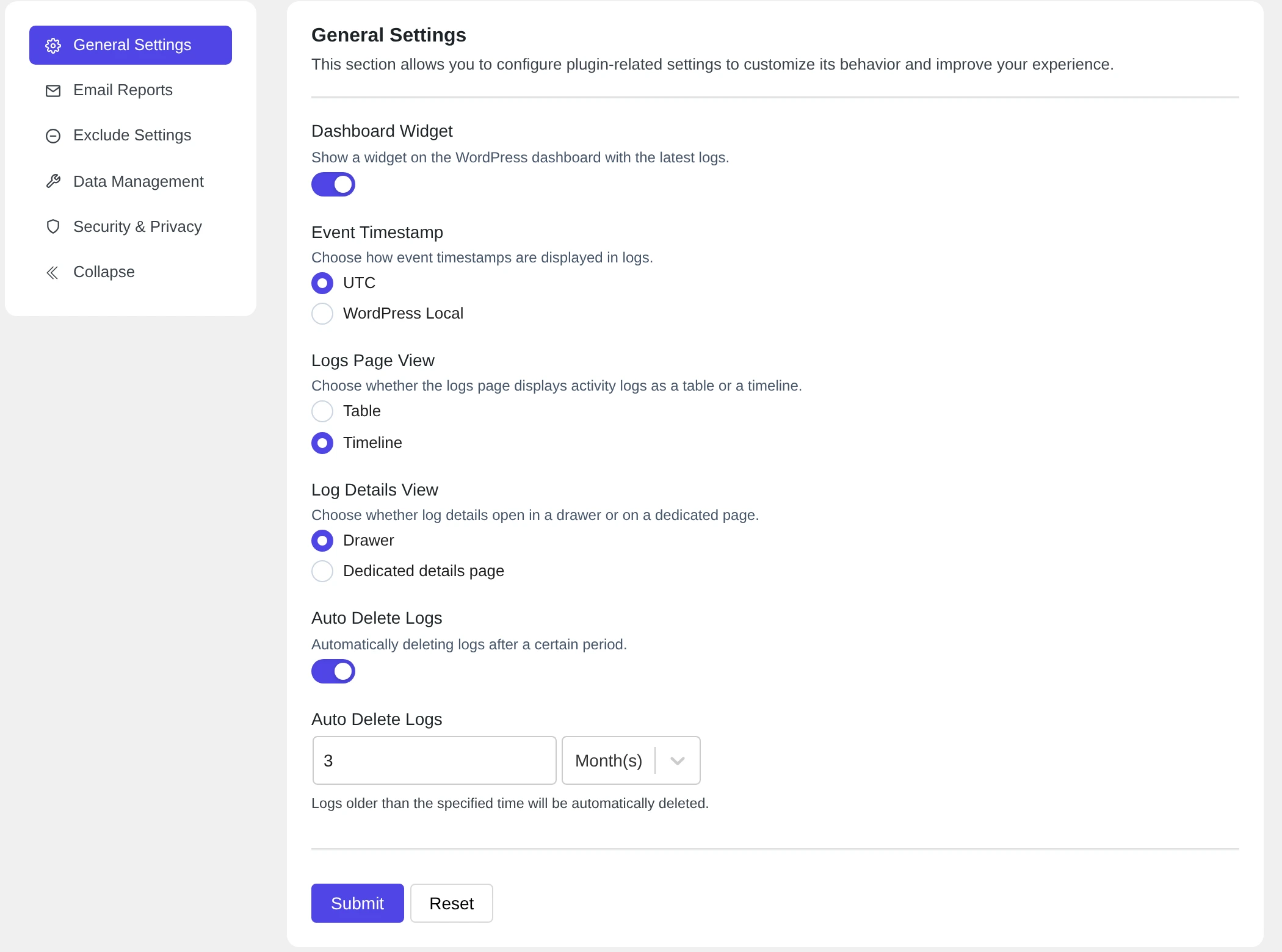
Click Submit after you change something. Click Reset to go back to the defaults.
The settings #
| Setting | Default | What it does |
|---|---|---|
| Dashboard Widget | On | Shows the Latest Activity Logs box on your WordPress dashboard. |
| Event Timestamp | UTC | Shows times in UTC or in your site’s time zone (WordPress Local). This only changes how times look. |
| Logs Page View | Timeline | Shows the log as a Timeline or a Table. |
| Log Details View | Drawer | Opens event details in a side panel (Drawer) or on a Dedicated details page. |
| Auto Delete Logs | On | Deletes old events for you. |
| Auto Delete Logs (time) | 3 Month(s) | How old an event must be before Pastmark deletes it. Choose Day(s), Month(s) or Year(s). |
How auto-delete works #
Once a day, Pastmark deletes all events that are older than the time you set. With the default, events older than 3 months are deleted.
Deleted events cannot be restored. If you must keep logs for a long time (for example, for an audit), set a longer time before you need the old events. Or turn off Auto Delete Logs.
Examples #
- Small blog: keep the default of 3 months.
- Online store with many orders: 1 month keeps the database small.
- Company that must keep records for one year: 1 Year(s), or longer.