
Go to User Activity → Settings → Security & Privacy.
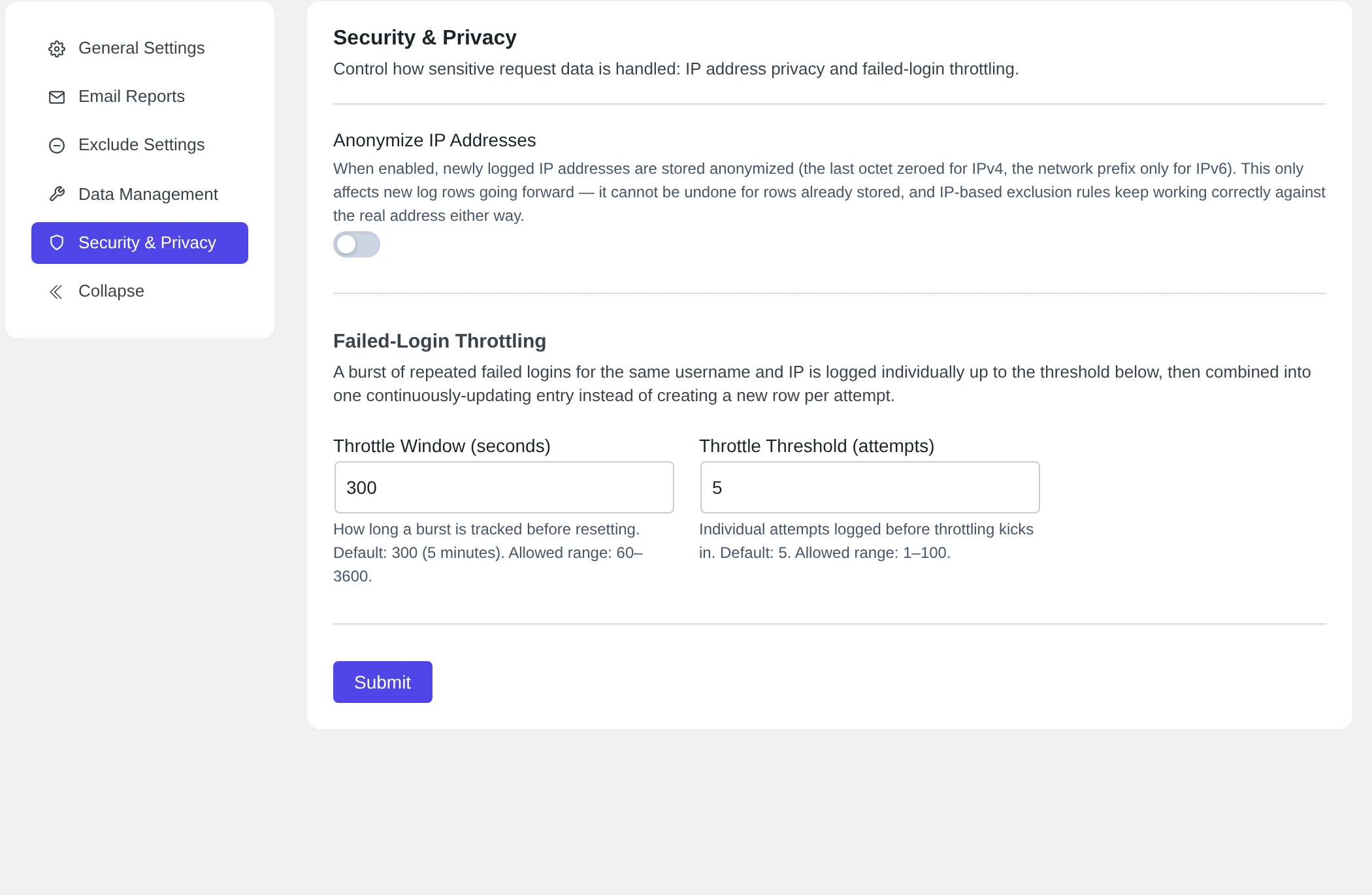
Click Submit to save.
Anonymize IP addresses #
Turn on Anonymize IP Addresses to save shorter IP addresses. This helps with privacy laws like the GDPR.
| IP type | Saved as |
|---|---|
IPv4, for example 203.0.113.45 | 203.0.113.0 (the last part becomes 0) |
| IPv6 | Only the first half is kept. |
This only changes new events. Events that are already in the log keep the full IP address.
Failed-login throttling #
When someone tries many wrong passwords, your log can fill up fast. Throttling keeps it short.
| Setting | Default | Allowed |
|---|---|---|
| Throttle Window (seconds) | 300 (5 minutes) | 60 to 3600 |
| Throttle Threshold (attempts) | 5 | 1 to 100 |
Example with the defaults: someone tries 20 wrong passwords for the user “admin” from the same IP address in 5 minutes. Pastmark saves the first 5 attempts one by one. Then it saves one summary event for the rest, and updates it with each new attempt.
Passwords and keys are always hidden #
Pastmark never saves passwords, secrets, tokens, API keys or private keys in the event data. They show as ***REDACTED***. You do not need to turn this on.
GDPR: export and erase personal data #
Pastmark works with the WordPress privacy tools in Tools → Export Personal Data and Tools → Erase Personal Data.
- Export includes Pastmark User Activity Logs: the date, event, action, message and IP address of each event by that user.
- Erase removes the IP addresses from that user’s events. The events stay in the log for security and audit reasons.
Erase does not remove the user’s name from event messages. And the summary event for repeated failed logins can still show the full IP address, even when Anonymize IP Addresses is on.