
The activity log is the list of everything Pastmark recorded on your site. The newest events are at the top.
Go to User Activity → Activity Logs.
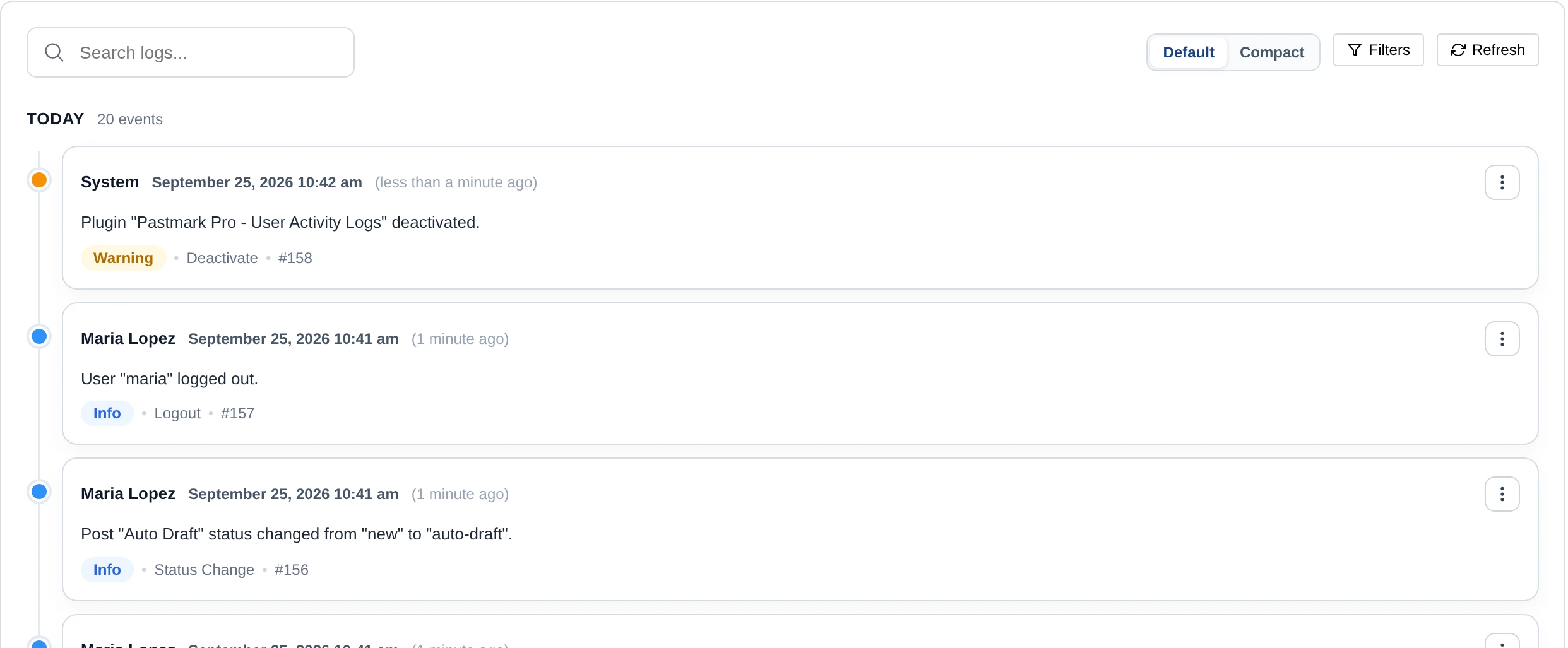
Read an event #
Each event shows:
- Who did it. System means no logged-in user did it, for example a failed login.
- When it happened, and how long ago.
- What happened, for example
User "maria" logged in. - The severity, for example Info or Warning.
- The action, for example Login, and the event number, for example #155.
Events are grouped by day, for example TODAY 20 events.
Choose timeline or table view #
Pastmark shows the log as a timeline by default. You can also show it as a table with the columns ID, Date, User, Event, Action, Message, Severity and Actions. In the table, click ID, Date, Event or Severity to sort.
To change the view, go to User Activity → Settings → General Settings and choose Table or Timeline under Logs Page View.
Use Default or Compact at the top of the log to show more or less space between events.
The menu of each event #
Click the ⋮ button on an event. You can:
| Option | What it does |
|---|---|
| View Details | Opens all details, including what changed. |
| View (post, user, …) | Only for some events. Opens the post, user or other item the event is about. |
| Copy Event Link | Copies a link to this event. |
| Copy Message | Copies the message. |
| Copy Markdown | Copies the event as Markdown text. |
| Copy JSON | Copies all event data as JSON. |
Read See what changed in an event.
New events #
When new events happen while you have the log open, you see a message like 1 new event. Click it to load them.
More pages #
The log shows 20 events on each page. Use the page numbers at the bottom, or type a number in Go to page and click Go.