
A delivery channel is a place where Pastmark Pro sends alerts. For example, an email to your admins, or a Slack channel. You set up a channel once. Then you can use it in many alert rules.
Go to User Activity → Settings → Alerts → Delivery Channels.
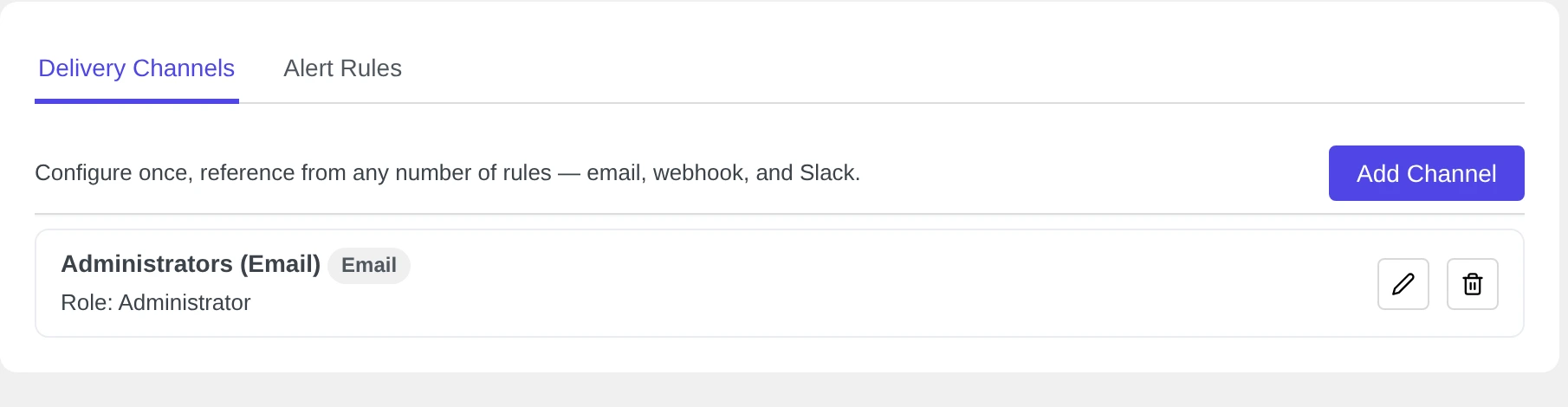
Pastmark Pro creates one channel for you: Administrators (Email). It emails every user with the Administrator role.
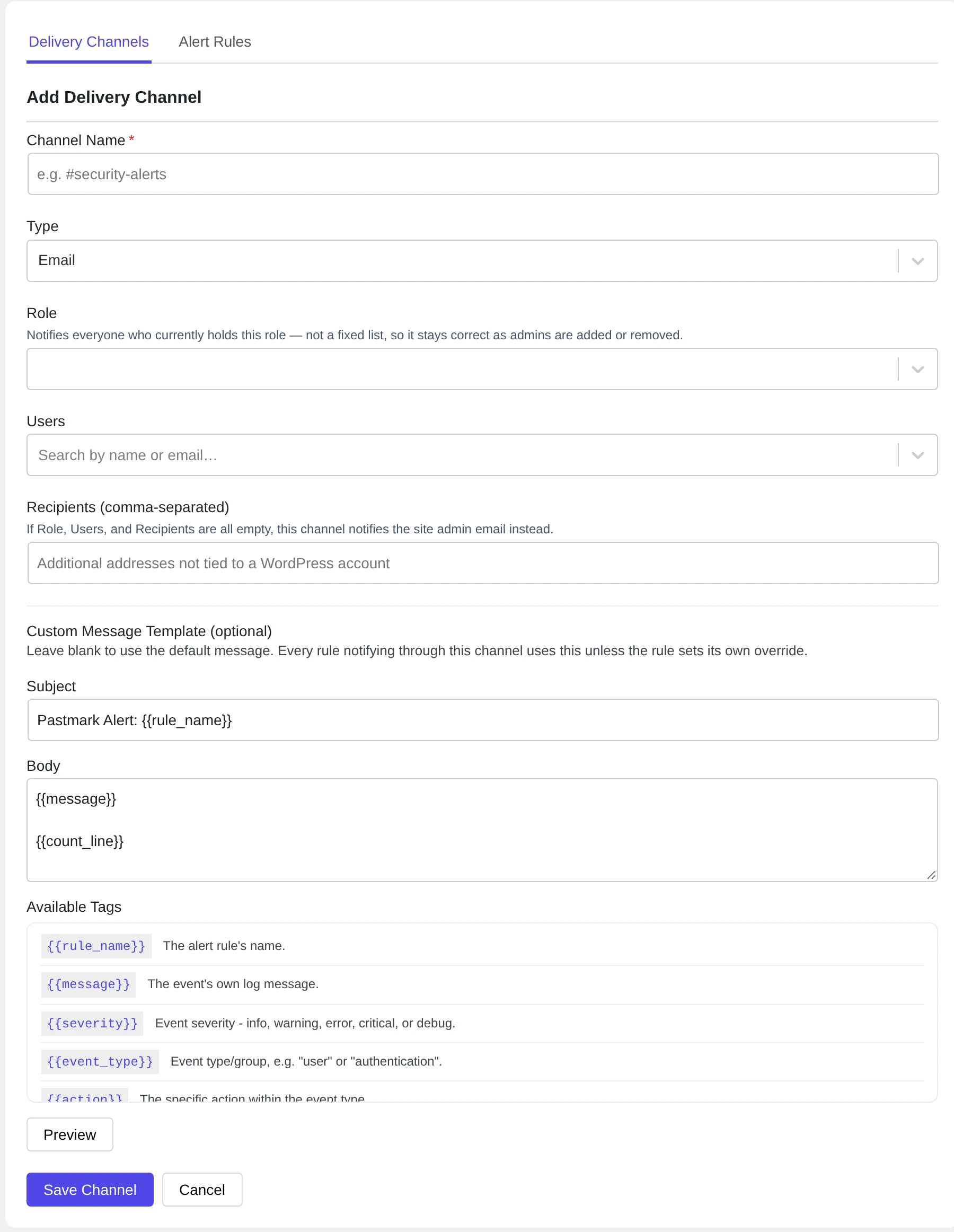
Add an email channel #
- Click Add Channel.
- Type a Channel Name, for example
Site owners. - Under Type, keep Email.
- Choose who gets the email. You can use one, two or all three fields:
- Role: everyone with this role. When you add a new admin, they get alerts too.
- Users: search for users by name or email.
- Recipients (comma-separated): email addresses without a WordPress account.
- Click Save Channel.
If Role, Users and Recipients are all empty, the email goes to your site’s admin email.
Add a Slack channel #
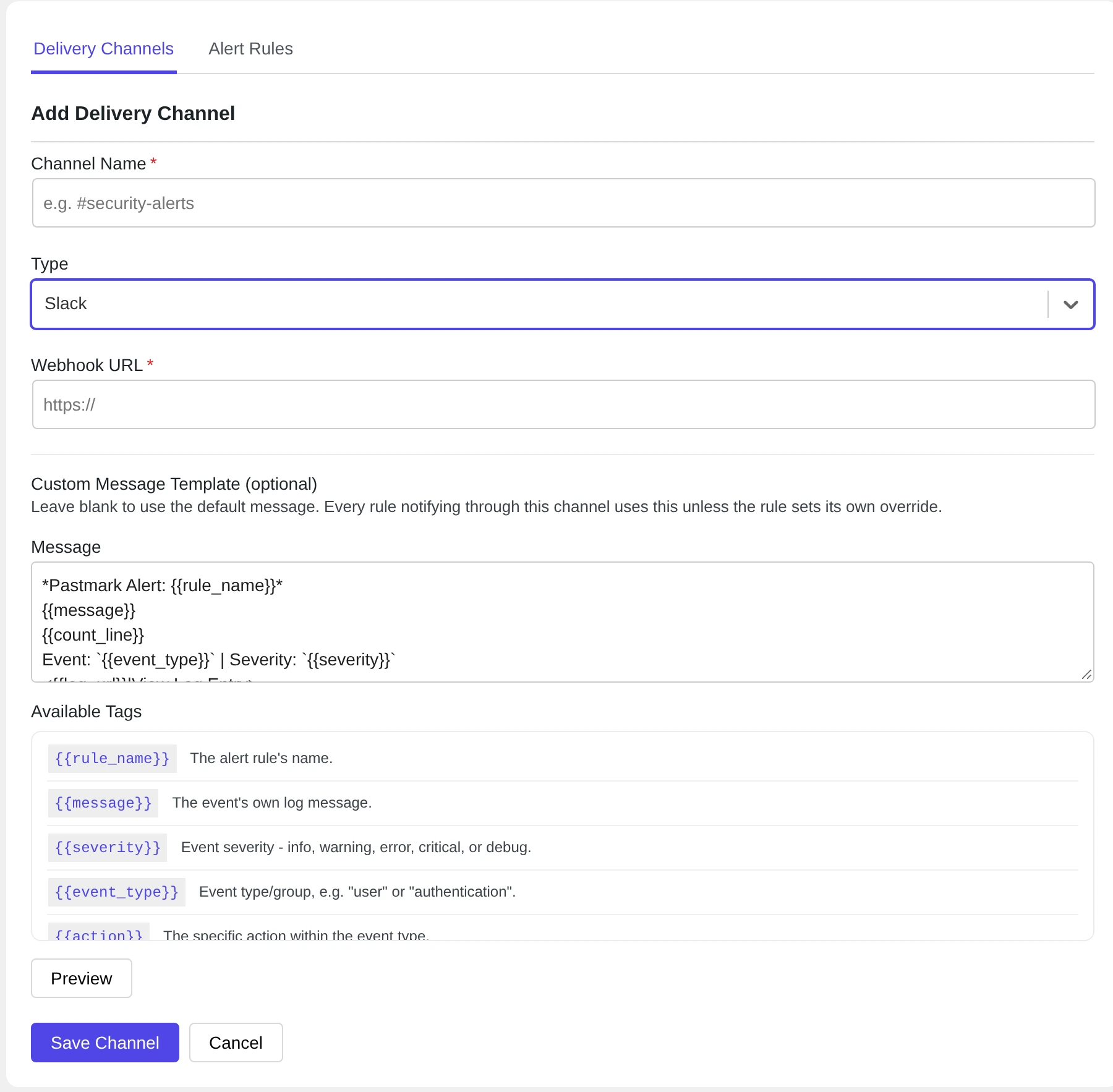
- In Slack, create an incoming webhook for your channel. Slack gives you a URL that starts with
https://hooks.slack.com/. - In Pastmark, click Add Channel.
- Type a Channel Name, for example
#security-alerts. - Under Type, choose Slack.
- Paste the URL into Webhook URL.
- Click Save Channel.
Add a webhook channel #
Use a webhook to send alerts to another service, for example an automation tool.
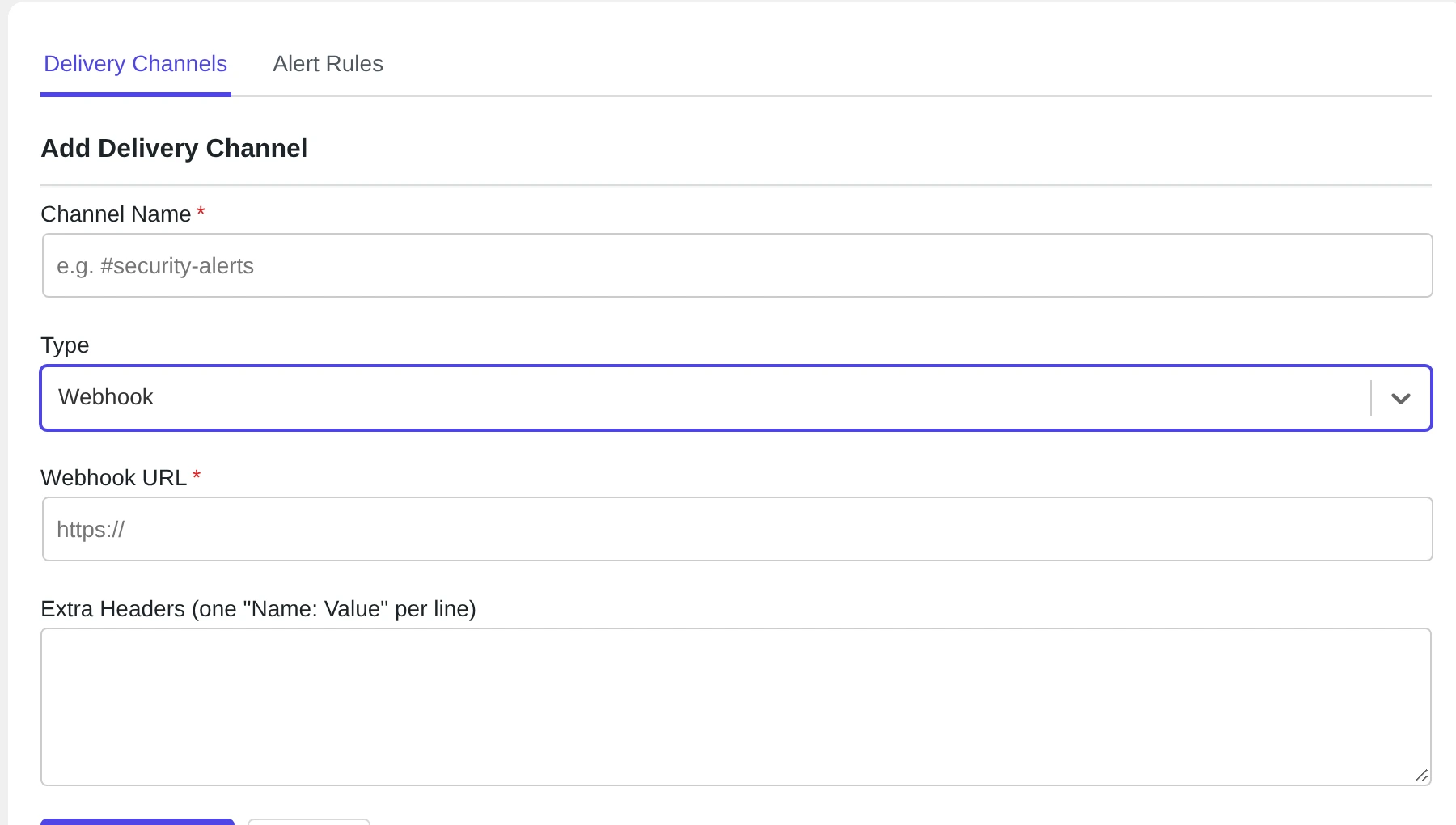
- Click Add Channel and choose the Type Webhook.
- Enter the Webhook URL.
- If the service needs extra headers, add them under Extra Headers, one
Name: Valueper line. - Click Save Channel.
Pastmark Pro sends a POST request with JSON data. It includes the rule name, the event type, the action, the severity, the message, the time, the count and a link to the event.
Edit or delete a channel #
Use the pencil icon to edit a channel, and the trash icon to delete it. If you delete a channel, rules that use it stop sending through it.
Test a new channel. Create a rule that fires on an event you can make yourself, for example a failed login. Read Create alert rules.
If a webhook or Slack message fails, Pastmark Pro tries once more. If it still fails, the error is saved in the activity log.